Guide
AI coding editor for Windows: what to look for and how to set up
Windows is the platform most developers actually sit at, yet many AI coding tools are written for macOS first and treat Windows as an afterthought. This guide covers what to look for in an AI coding editor on Windows, the practical problems people hit, and how to get set up with Arcwright, which is a native Windows desktop app.
What matters on Windows specifically
- A real installer and updates. You want a normal installer, a clear uninstall and automatic updates, not a zip you must manage by hand.
- Shell behaviour. Windows developers use PowerShell, Command Prompt, Git Bash or WSL. An agent that runs commands needs to cope with Windows paths, backslashes and line endings.
- Path and permission quirks. Long paths, antivirus scanning of project folders and files locked by another program all cause odd failures. A good editor reports them clearly.
- SmartScreen and trust. New desktop apps often trigger Microsoft Defender SmartScreen. Know how to verify a download before you run it.
- Where credentials are stored. On Windows, sign-in data should be encrypted with the operating system (DPAPI), not left in a plain config file.
Native app, browser tool or extension?
You have three broad choices on a Windows PC. A native desktop editor gives you the fastest feel and file access without uploading your whole project. A browser-based builder needs no install but works best on new projects. An extension for a general editor keeps your existing setup. The guide to the best AI coding editors lays out how to choose between them.
Installing Arcwright on Windows
- Open the download page and get the Windows installer. The page shows the version and a SHA-256 checksum.
- Optional but recommended: in PowerShell, run
Get-FileHash -Algorithm SHA256 .\Arcwright-Setup-<version>.exeand compare the result to the checksum on the page. A match means you have exactly the file we published. - Run the installer. If Windows shows "Windows protected your PC", that is SmartScreen reacting to a new program that is not widely downloaded or carrying a paid publisher certificate. It does not mean a virus was found. Click More info, then Run anyway. We are working on signing the installer so this notice goes away.
- Open Arcwright and choose a project folder. The editor opens without an account.
- To use Arcwright AI, choose Sign in. Your browser opens arcwrightai.com, you sign in there and approve a code. The app never sees your password and never holds an AI key.
The app checks for updates in the background and installs them when you next close it. Your settings and projects are kept.
Your first ten minutes
Open a small project you know well, so you can judge the results. Try the four modes in order of risk:
- Ask (Alt+1). Select a function and ask what it does. The open file and your selection go with the question.
- Sketch (Ctrl+J). Select a few lines and describe a small edit. You get a diff, then Accept or Reject.
- Blueprint (Alt+3). Ask for a change that touches several files. Tick the tasks you want, review each diff and apply them in one step.
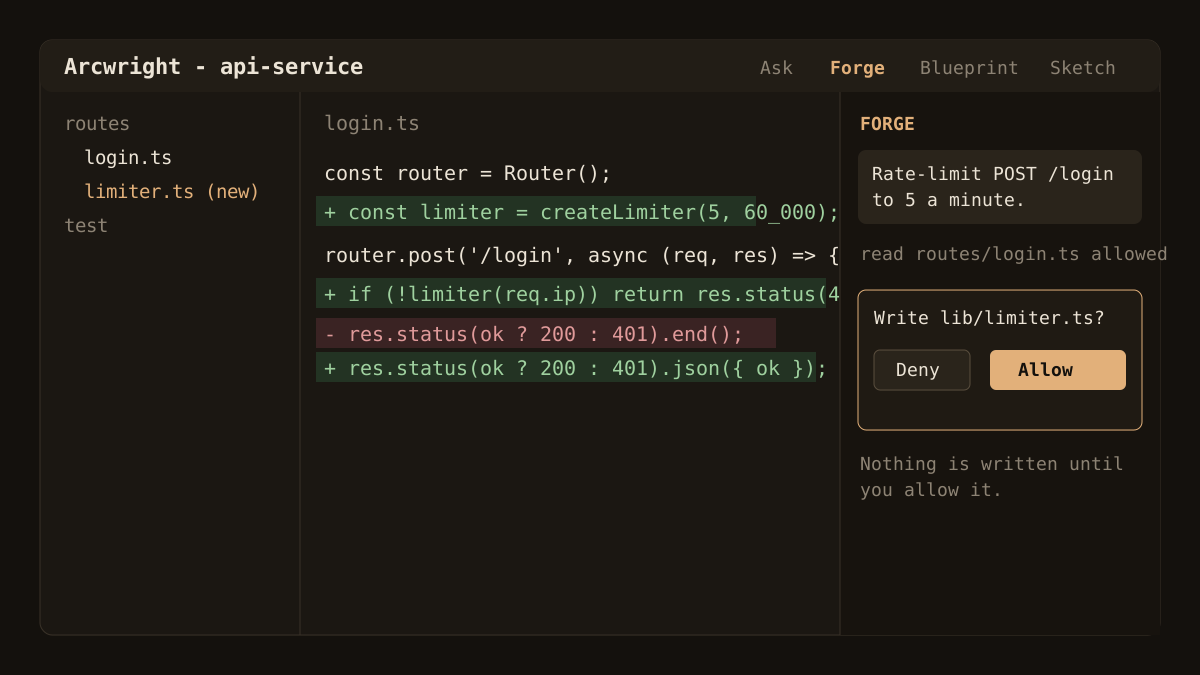
- Forge (Alt+2). Give the agent a task in the folder. It will ask before it writes, deletes or runs a command. Ctrl+Alt+Shift+H stops it immediately.
Common Windows problems and fixes
"Windows protected your PC"
Covered above. Verify the checksum, then use More info and Run anyway. If your browser says the file is not commonly downloaded, open the downloads list and choose Keep.
Commands behave differently than on Linux
If a tutorial uses rm, export or && chains, translate them to PowerShell equivalents or tell the AI which shell you use. Saying "I am on Windows with PowerShell" in your first message avoids a lot of wrong commands.
Line endings
Windows files often use CRLF. If your team uses LF, set core.autocrlf in git and agree on one style. Otherwise a diff can look as if every line changed.
Antivirus slowing project folders
Large node_modules folders can be slow to scan. Excluding your project folder from real-time scanning, if your policy allows it, can speed things up. Do this only for folders you trust.
Long paths
Deeply nested folders can hit the old 260 character limit. Keep projects near the root of a drive, for example C:\dev, or enable long path support in Windows.
What does it cost?
The app is free to download. The Free plan includes 30 minutes of Arcwright AI a day, with no card. The clock runs only while a request is working. Paid plans and top-up credits are on the pricing page. In the app, a meter shows tokens and credits as you work, and you can set a monthly budget that warns at 80% and stops at the cap.
What is not ready
Arcwright is Windows only today. macOS and Linux builds are not ready, and we would rather say so than promise dates. If you work across several operating systems, you may need a different tool for the others. See Cursor alternatives for the wider picture.
Privacy on your machine
Your files stay on your computer. When you ask Arcwright AI something, the parts you send, such as the open file, your question and anything Forge reads for you, go to our server over HTTPS so the request can be answered and metered. Read the privacy policy for the details. Sharing a replay publishes it on purpose, and nothing is shared otherwise.
Ready to try it? Download Arcwright for Windows, or look at the features first.