Guide
How to review AI-generated code safely
AI tools can write a lot of code quickly, and that moves the work to a different place: reviewing. A fast change you do not understand is a liability. This guide gives a practical routine for reviewing AI-generated code, whichever tool wrote it, with notes on how Arcwright's diffs, permissions and checkpoints make the routine easier.
Why review matters more with AI
AI-written code usually looks tidy and confident. That makes mistakes harder to spot, not easier. Common problems include code that handles the happy path only, invented function names or options, quietly removed checks, copied patterns that do not fit your project, and unsafe handling of input. None of this means AI code is bad. It means the review step is where you add the judgement the tool lacks.
Step 1: Ask for a small change
Review effort grows quickly with the size of a change. Keep requests small enough that you can read the whole result. If you do need a large change, ask for a plan first. In Arcwright, Blueprint produces a summary and a task list, so you can tick the tasks you want and review each one as a diff before anything is applied.
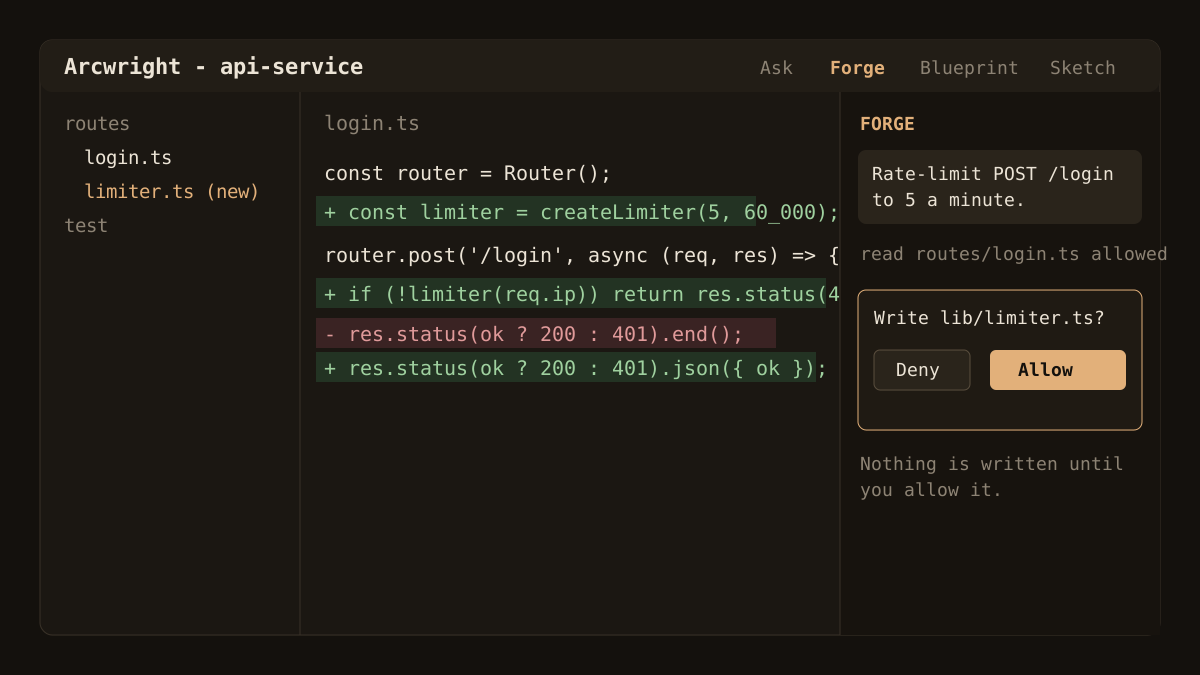
Step 2: Read the diff, not the file
A diff shows exactly what changed. Read it in this order:
- Deletions first. Removed lines are where silent breakage hides. Ask why each one is gone.
- New files and new dependencies. Does the project need them? Is the package real, maintained and what you expected?
- Changes outside the area you asked about. If you asked for a login rate limit and the diff touches billing code, stop.
- The core logic. Read it as if a colleague wrote it. Do you understand every line?
Step 3: Check the risky categories
- Input handling. Is user input validated and escaped before it reaches a database, a shell command or a file path?
- Secrets. No keys, tokens or passwords written into source files or logs.
- Authentication and permissions. Every route that should be protected still is.
- Error handling. Failures return a safe message and do not leak details.
- Commands. Anything the agent wants to run should be understood first. Read the command before you click Allow.
Step 4: Run it and test it
Reading is not enough. Run the project and exercise the change by hand. Then run the existing tests. Ask the AI to add a test for the new behaviour, and read that test too, since a weak test proves nothing. A useful trick is to break the code on purpose and confirm the test fails.
Step 5: Keep a way back
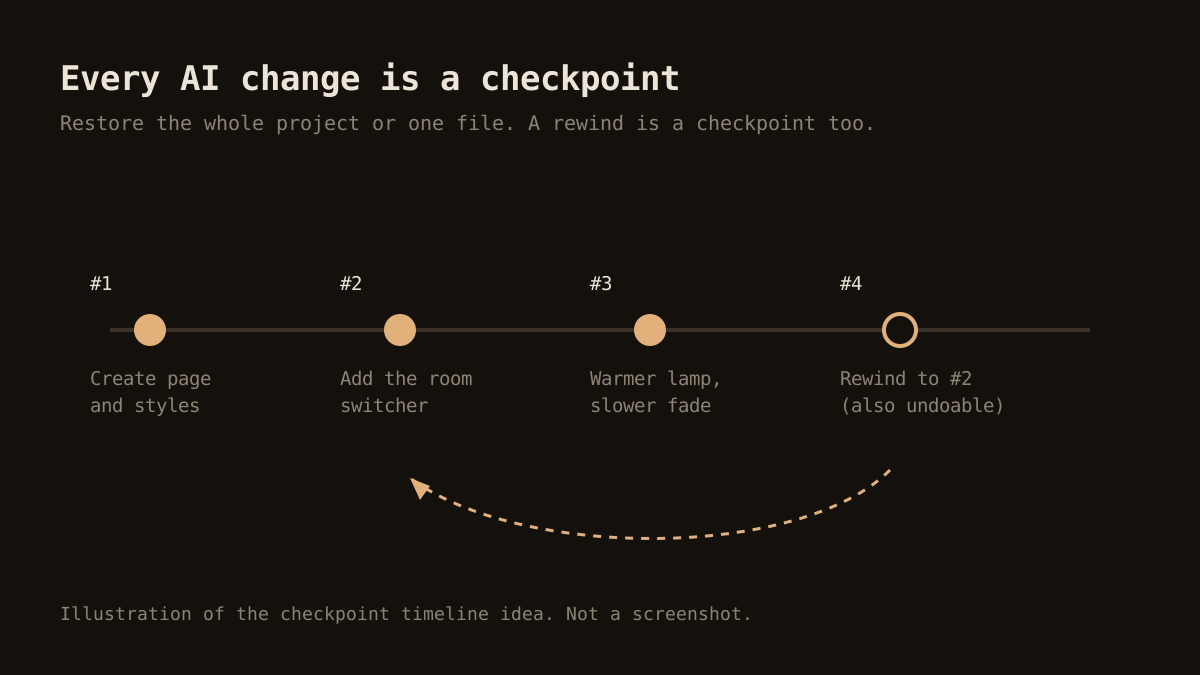
Before accepting a large change, make sure you can undo it. Git is the baseline: commit a clean state first. Editors can add more. In Arcwright every AI change is a checkpoint with the prompt that caused it, and you can restore the project or a single file. A rewind is itself a checkpoint, so even a wrong rewind is recoverable. Blueprint offers Undo all for a multi-file apply, and Sketch edits are single undoable changes.
Control what the agent can do
Review is easier when the agent cannot do much without you. Arcwright's Forge asks before it writes a file, deletes one or runs a terminal command, and the check runs in the app, not in the model. You can turn the prompts off when you trust a task, and you can stop a run instantly with Ctrl+Alt+Shift+H. Whatever tool you use, learn where its approval settings are before the first real project.
A short review checklist
- Is the change small enough that I read all of it?
- Did I look at deletions and new dependencies first?
- Does it touch only what I asked about?
- Is user input validated, and are secrets kept out of the code?
- Did I run it and the tests?
- Can I undo it in one step?
When to slow down
Slow down for authentication, payments, file uploads, database migrations, anything that deletes data and anything you cannot test locally. For those, read every line, write tests first if you can, and consider having a second person look. For throwaway prototypes, a lighter review is reasonable. The point is to choose your level of care on purpose. The vibe coding guide covers where lighter review is acceptable.
Reviewing as a beginner
If you are new to programming, reviewing code you did not write can feel impossible. Two habits help. First, ask the AI to explain each part of its change in plain language, then check the explanation against what the code does by running it. Second, change one thing at a time so that when something breaks, you know which step caused it. Over a few projects you will start to recognise patterns, and the diffs will get easier to read. Treat the AI as a fast colleague who sometimes bluffs: useful, but always worth checking.
Try this routine in Arcwright
Arcwright is a Windows AI coding editor. The Free plan gives you 30 minutes of AI a day, with no card, which is enough to practise this routine on a small project. macOS and Linux builds are not ready yet. See features for how each mode works, pricing for plans, or download the app.